What Is SPF? The First Line of Email Authentication
When you send an email from your business domain, how does Gmail know it's actually from you? Anyone can type your email address into the "From" field. Without verification, email providers have no way to tell the difference between a legitimate message from your company and a scammer pretending to be you.
That's where SPF comes in. It's the first layer of email authentication, and major providers now enforce authentication requirements for many senders. If your emails fail SPF checks, they might land in spam or get rejected entirely.
This guide explains what SPF is, how it works, and what you need to do about it. If you've already read our guides on what DKIM is and how it protects your emails and what DMARC is and why your business emails depend on it, this completes the picture. SPF is the foundation the other two build on. For a complete walkthrough with DNS record examples, see our comprehensive SPF, DKIM, and DMARC setup guide.
What SPF Does
SPF (Sender Policy Framework) is an email authentication method that does one thing: it tells receiving email servers which servers are allowed to send email on behalf of your domain.
Think of it like a guest list for your domain's email. You publish a list saying "these servers can send as me." When an email arrives claiming to be from your domain, the recipient's server checks that list. If the sending server isn't on it, the email fails authentication.
Here's how it works step by step:
- You publish an SPF record in your domain's DNS settings (a TXT record that lists your authorized servers)
- Someone sends an email claiming to be from your domain
- The receiving server looks up your SPF record
- It checks whether the sending server's IP address is on your list
- If yes, SPF passes. If no, SPF fails.
You never see this happening. It runs automatically every time someone receives an email claiming to be from your domain.
How SPF verification works: sender's email triggers DNS lookup of SPF record, receiving server checks if sender IP is authorized, email passes or fails based on the result
Why SPF Matters Now
For years, SPF was recommended but optional. That changed in 2024 when major email providers started requiring it.
Google began enforcing sender requirements in February 2024. According to Google's sender guidelines (opens in a new tab), all senders must set up SPF or DKIM, and bulk senders (5,000+ messages per day) must use SPF, DKIM, and DMARC. Non-compliant traffic can be deferred, spam-filtered, or rejected with authentication errors.
Other large mailbox providers have introduced similar sender-authentication tightening for high-volume traffic.
Microsoft now enforces authentication requirements for high-volume senders (opens in a new tab) to Outlook, Hotmail, and Live consumer inboxes. Non-compliant messages trigger error code 550 5-7-515 and bounce back.
Even if you're not a bulk sender, SPF improves deliverability. Email providers trust authenticated messages more than unauthenticated ones. Without SPF, your invoices, confirmations, and newsletters are more likely to end up in spam.
How SPF Records Work
An SPF record is a line of text in your domain's DNS settings. It starts with v=spf1 and ends with a rule about what to do with unauthorized senders.
Here's a simple example:
v=spf1 include:_spf.google.com ~all
This record says: "Emails from my domain can come from Google's servers. Everything else should be treated with suspicion."
Let me break down the parts:
v=spf1 identifies this as an SPF record. Every SPF record starts with this.
include:_spf.google.com authorizes Google's email servers. The "include" mechanism tells receiving servers to also check Google's SPF record for authorized IP addresses.
~all is the enforcement rule. The tilde means "soft fail." Unauthorized emails aren't automatically rejected, but they're marked as suspicious. A hyphen (-all) means "hard fail," where unauthorized emails should be rejected.
Common Include Values
If you use Google Workspace: include:_spf.google.com
If you use Microsoft 365: include:spf.protection.outlook.com
If you use both: v=spf1 include:_spf.google.com include:spf.protection.outlook.com ~all
You can also authorize specific IP addresses:
v=spf1 ip4:192.0.2.0/24 include:_spf.google.com ~all
This authorizes both a specific IP range and Google's servers.
The 10 Lookup Limit
Here's where SPF gets tricky. RFC 7208 (opens in a new tab), the SPF specification, limits you to 10 DNS lookups per SPF check.
Every "include" statement requires at least one lookup. Some includes point to records with their own includes, adding more lookups. If your total exceeds 10, the SPF check fails with a "PermError" (permanent error).
This matters because modern businesses often use multiple email services: your main email provider, a newsletter tool, a CRM, an invoicing system, maybe a marketing platform. Each one needs to be in your SPF record, and each "include" counts against your limit.
When you exceed that lookup limit, SPF evaluation can return a PermError. In practice, receiving systems often treat those messages as failed authentication, which can hurt deliverability or trigger rejection depending on policy.
How to Fix the Lookup Limit
If you're hitting the 10 lookup limit, you have a few options:
Remove unused services. If you stopped using a marketing tool but left its include in your SPF record, remove it.
Replace includes with IP addresses. Instead of include:example.com, you can list the actual IP addresses. IP4 and IP6 entries don't count against the lookup limit. The downside: if the service changes their IP addresses, your emails break until you update the record.
Use SPF flattening. This technique converts all your includes into a flat list of IP addresses. Tools like AutoSPF (opens in a new tab) can automate this, but you need to keep the list updated as service providers change their infrastructure.
SPF vs DKIM: What's the Difference?
SPF and DKIM both authenticate email, but they check different things.
SPF checks where the email came from. It verifies that the sending server is on your approved list. This is "path-based" authentication.
DKIM checks what the email says. It uses a cryptographic signature to verify the message wasn't altered in transit. This is "content-based" authentication.
Per RFC 6376 (opens in a new tab), DKIM uses cryptographic signatures rather than sender IP checks. SPF still catches problems DKIM might miss, such as unauthorized servers trying to send as your domain without proper authorization.
The key difference shows up with email forwarding. When someone forwards your email, SPF often breaks because the forwarding server's IP isn't in your SPF record. DKIM survives forwarding because the signature stays attached to the message.
This is why you need both. SPF catches unauthorized senders. DKIM verifies message integrity and survives forwarding. Together, they cover more attack scenarios than either one alone.
SPF vs DKIM: SPF verifies the sending server (path-based), DKIM verifies message content hasn't changed (content-based)
What Happens When SPF Fails
When an email fails SPF, the consequences depend on your enforcement settings and whether you have DMARC configured.
With ~all (soft fail): The email is marked as suspicious but usually still delivered, often to spam. This is useful during rollout and testing because it balances security with deliverability.
With -all (hard fail): Email providers may reject the message outright. This is stronger protection but riskier if your SPF record is incomplete.
With DMARC configured: DMARC can still pass when either SPF or DKIM aligns (opens in a new tab), even if the other fails. This is why the three protocols work together. If SPF fails but DKIM passes and aligns with your domain, DMARC can still allow the email through.
The bigger problem is sender reputation. Repeated SPF failures damage your domain's reputation with email providers. Over time, even properly authenticated messages struggle because providers have learned not to trust your domain.
Common SPF Mistakes
These are the most common SPF problems:
Multiple SPF records. Your domain can only have one SPF record. If you have two, SPF validation fails. This often happens when someone adds a new record without removing the old one.
Missing the v=spf1 tag. Every SPF record must start with v=spf1. Typos like v=spf2 or forgetting it entirely break the record.
Exceeding the 10 lookup limit. Each "include" and some other mechanisms count toward a 10-lookup maximum. Exceed it and SPF fails with a PermError.
Using +all. This allows anyone to send as your domain. Never use +all. Use ~all (soft fail) or -all (hard fail).
Forgetting to add services. If you use a CRM, newsletter tool, or other service that sends email as your domain, it needs to be in your SPF record. Forgetting one means those emails fail authentication.
Syntax errors. Extra spaces, typos, or misplaced characters can break your record. "incldue" instead of "include" won't work.
How to Check Your SPF Record
You can verify your SPF setup for free using MXToolbox's SPF checker (opens in a new tab). Enter your domain, and it shows your current record along with any problems.
The tool checks for:
- Valid syntax
- Whether you exceed the 10 lookup limit
- Deprecated mechanisms (like "ptr," which is slow and unreliable)
- Dangerous settings (like +all)
If you want to test whether a specific IP address passes your SPF check, MXToolbox can do that too. This is useful for verifying that a new email service is properly authorized before you start using it.
Google's Check MX tool (opens in a new tab) also tests SPF as part of a broader email configuration check.
How to Set Up SPF
If you don't have SPF configured, or need to fix an existing record, here's the process:
Step 1: Identify all your email sources. Make a list of everything that sends email as your domain. Your main email provider (Google Workspace, Microsoft 365), any marketing tools, CRMs, invoicing systems, and transactional email services.
Step 2: Get their SPF include values. Each service provides documentation on what to add to your SPF record. For example, Google Workspace uses include:_spf.google.com and Microsoft 365 uses include:spf.protection.outlook.com.
Step 3: Create or update your SPF record. In your domain's DNS settings, add or modify the TXT record for your root domain. Combine all your authorized sources into one record ending with ~all.
Step 4: Verify the record. Use MXToolbox (opens in a new tab) to check that your record is valid and doesn't exceed the lookup limit.
Step 5: Wait for propagation. DNS changes can take up to 48 hours to propagate globally, though most updates happen within a few hours.
Step 6: Set up DKIM and DMARC. SPF alone isn't enough. You need all three protocols for complete protection. Our guides on setting up DKIM and configuring DMARC cover the next steps.
The Bottom Line
SPF is a list of servers authorized to send email from your domain. When receiving servers check incoming email, they look up that list and verify the sender is on it.
Without SPF:
- Gmail, Yahoo, and Microsoft may reject or spam your emails
- Anyone can send emails pretending to be your domain
- Your sender reputation suffers over time
Setting up SPF is a one-time task. Once it's configured correctly, every email you send automatically passes SPF authentication.
The catch is getting it right. Too many includes and you hit the lookup limit. Missing services and those emails fail. The wrong syntax and the whole record breaks.
If you're not sure whether your SPF is set up correctly, check it with MXToolbox (opens in a new tab). A valid SPF record is the foundation for email authentication, and the other protocols (DKIM and DMARC) build on top of it.
Need Help With Email Authentication?
Email authentication can be confusing. SPF, DKIM, and DMARC all need to work together, and mistakes can cause your emails to stop arriving.
If you're not sure whether your email is properly authenticated, or you're seeing deliverability problems, we can take a look. We'll check your current setup and explain what we find in plain terms.
Get a free email authentication review: Contact us at info@ylx.ca
Analysis FAQ.
What is SPF in email?
SPF (Sender Policy Framework) is an email authentication method that tells receiving servers which servers are allowed to send email on behalf of your domain. You publish a list in DNS, and receiving servers check whether the sending server's IP is authorized.
Why is SPF required now?
Major mailbox providers now enforce sender authentication requirements. Google's sender guidelines require SPF or DKIM for all senders, and Microsoft rejects non-compliant high-volume traffic with error 550 5.7.515. Without SPF, your business emails are far more likely to land in spam or bounce.
What does an SPF record look like?
An SPF record is a DNS TXT record starting with v=spf1, listing authorized senders, and ending with a rule like -all or ~all. Example: v=spf1 include:_spf.google.com ~all authorizes Google Workspace and soft-fails all others.
What's the difference between -all and ~all in SPF?
-all (hard fail) tells servers to reject unauthorized emails. ~all (soft fail) marks them suspicious but doesn't reject. Start with ~all while testing, then switch to -all once you've confirmed all legitimate senders are included.
Tagged with

Further Reading
Related Analysis.
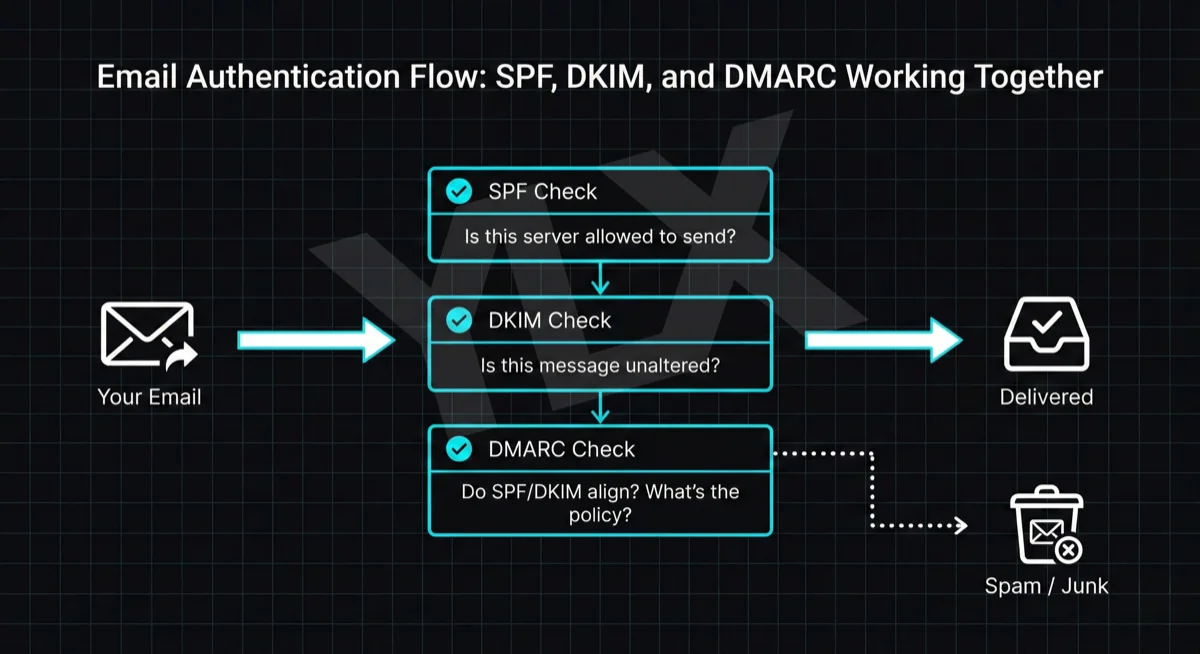
SPF, DKIM, and DMARC Explained: Email Authentication Setup
Learn what SPF, DKIM, and DMARC are, why Gmail and Microsoft now require them, and how to set them up with step-by-step DNS examples for common providers.
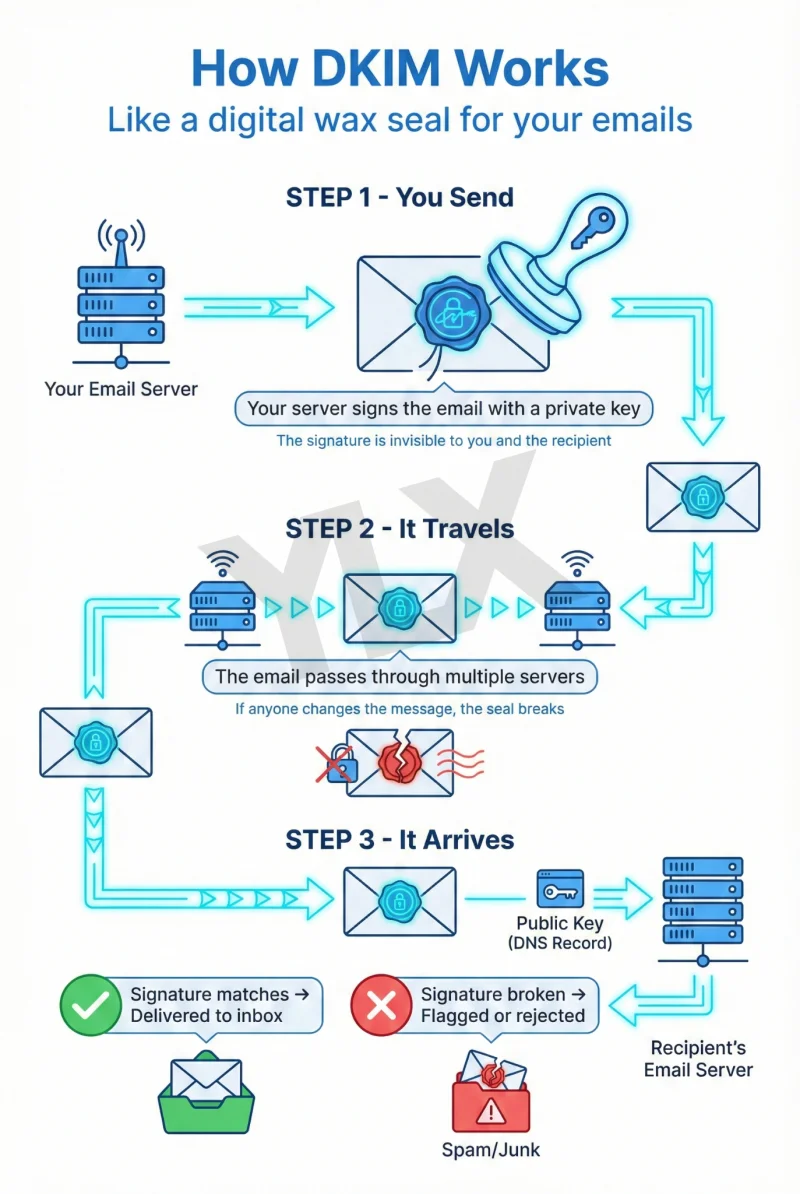
What Is DKIM? How Email Signatures Protect Your Business
DKIM proves your emails are genuine. Learn how this digital signature works, why Gmail and Microsoft now require it, and how to check if your domain has it.
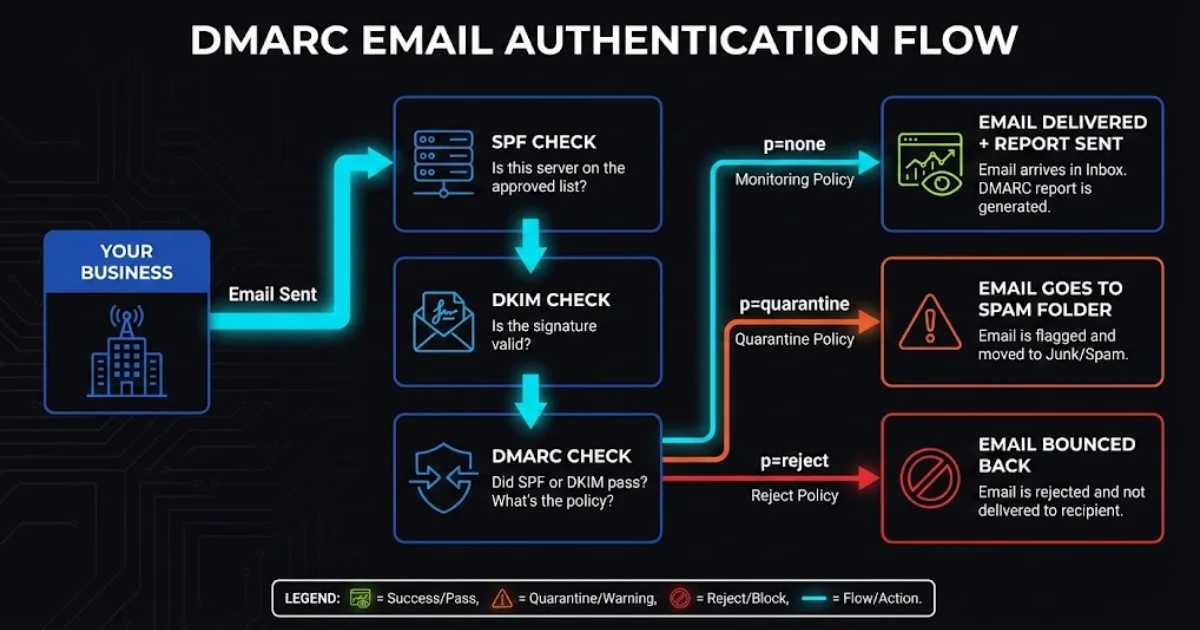
What Is DMARC and Why Your Business Emails Depend on It
DMARC protects your domain from spoofing and helps email deliverability. Learn how it works with SPF and DKIM, what providers enforce now, and what to do next.