What Is DKIM? How Email Signatures Protect Your Business
If you send emails to customers, there's a chance some of them aren't arriving. Not because of a typo in the address. Because email providers like Gmail, Microsoft, and Yahoo don't trust that the emails are actually from you.
DKIM is one of the tools that proves your emails are legitimate. Without it, your invoices, appointment confirmations, and newsletters might be landing in spam folders or getting rejected entirely. The worst part: you'd never know.
This guide explains what DKIM is, why it matters, and what you need to do about it. For step-by-step DNS setup instructions, see our complete SPF, DKIM, and DMARC setup guide.
What DKIM Does
DKIM (DomainKeys Identified Mail) is an email authentication method that does two things:
- Proves that an email was actually sent by your domain
- Confirms the message wasn't tampered with during delivery
Every email you send passes through multiple servers before reaching the recipient. Without DKIM, there's no way for the recipient's email provider to verify that the message really came from you, or that nobody changed it along the way.
DKIM solves this by attaching a digital signature to every email your server sends. The recipient's server checks that signature against a public key you've published in your domain's DNS records. If the signature checks out, the email is authenticated. If it doesn't, the email is flagged as suspicious.
How It Works (Without the Jargon)
Think of DKIM like a wax seal on a letter.
In the old days, important letters were sealed with a unique wax stamp. The recipient could look at the seal and know two things: who sent it (because the stamp was unique to the sender) and that nobody had opened it (because the seal was intact).
DKIM works the same way, using math instead of wax.
Your server creates two keys. One is private and stays on your email server. The other is public and gets published in your domain's DNS records where anyone can look it up.
When you send an email, your server uses the private key to create a unique signature based on the message content. This signature gets attached to the email's header (invisible to you and the recipient).
When the email arrives, the recipient's server looks up your public key in DNS and checks it against the signature. If they match, the email passes. If someone altered the message or faked the sender, the signature won't match and the check fails.
You never see any of this happening. It runs in the background every time you send an email, as long as it's set up correctly.
How DKIM works: your server signs the email with a private key, the message travels through servers with the signature intact, and the recipient verifies it against your public key
Why This Matters Now
For years, email authentication was optional. Providers recommended it, but emails without DKIM could still reach inboxes. That changed in 2024 and 2025.
Gmail started enforcing sender requirements in February 2024. Google requires SPF or DKIM for all senders, and SPF + DKIM + DMARC for bulk senders. Google also states unauthenticated mail may be rejected or sent to spam (Google sender guidelines (opens in a new tab)).
Microsoft now enforces similar requirements for high-volume senders to consumer inboxes and can reject non-compliant messages with error code 550 5-7-515 (Microsoft guidance (opens in a new tab)).
Yahoo publishes parallel best-practice requirements for authenticated sending (Yahoo sender guidance (opens in a new tab)).
This isn't just a problem for businesses sending thousands of emails a day. Even if you send a handful of emails, failing DKIM can cause your messages to land in spam instead of the inbox.
The Silent Failure Problem
The most dangerous thing about DKIM failure is that you might not notice it immediately.
When your emails fail DKIM checks, you don't receive an error message. Your email client shows the message as "sent." The recipient doesn't get a notification that something was blocked. Your email just quietly disappears.
Many businesses discover they have a delivery problem only when a customer says "I never got your invoice" or "I didn't see your confirmation email." By that point, the problem may have been going on for weeks or months.
It gets worse over time. Repeated authentication failures can damage domain reputation and make inbox placement harder, even after technical fixes are in place.
Fixing DKIM today doesn't instantly erase past failures. Most providers use 30-day rolling windows for reputation calculations, so recovery takes time.
How DKIM Connects to SPF and DMARC
DKIM is one of three email authentication methods. Each checks something different:
SPF checks where the email came from. It verifies that the sending server is authorized to send email on behalf of your domain.
But it doesn't check the "From" address that recipients see, and it breaks when emails are forwarded. (We cover SPF in detail in our guide to what SPF is and how to set it up.)
DKIM checks what the email says. It verifies that the message wasn't altered in transit and that it came from your domain. Unlike SPF, DKIM survives email forwarding because the signature is attached to the message itself.
DMARC ties them together. It checks that the visible "From" address aligns with SPF or DKIM results, and it tells email servers what to do when checks fail (deliver, send to spam, or reject).
We covered DMARC in detail in our guide to what DMARC is and why your business emails depend on it. The short version: DMARC needs DKIM to work properly. Without DKIM, DMARC has less to work with, and your emails are more likely to fail authentication.
You need all three. DKIM helps prove message integrity, SPF validates sending infrastructure, and DMARC tells receivers how to handle failures.
SPF checks where the email came from, DKIM checks what it says, DMARC checks who sent it and sets enforcement policy
What Happens If You Don't Have DKIM
The consequences depend on your DMARC policy:
- No DMARC set up: Your emails might still be delivered, but providers increasingly filter unauthenticated emails to spam
- DMARC set to quarantine: Emails that fail DKIM go to the recipient's spam folder
- DMARC set to reject: Emails that fail DKIM are rejected entirely and never arrive
Without DKIM, you're also giving up deliverability resilience. Full authentication (SPF, DKIM, and DMARC) gives receiving providers stronger signals to trust your mail and route it to inboxes.
How to Check If You Have DKIM
You can check your DKIM setup for free using MXToolbox (opens in a new tab). You'll need your domain name and your DKIM selector (a label that identifies which key to check).
If you're not sure what your selector is, you can find it by looking at the source of any email you've sent. In Gmail, open a sent email, click the three dots, and select "Show Original." Look for the "DKIM-Signature" header. The selector is the value after "s=" in that header.
If the tool shows a valid DKIM record, you're set. If it shows no record or an invalid one, your emails may not be passing authentication checks.
What to Do About It
If you manage your own email, here's what you need:
1. Check your current setup. Use a free tool like MXToolbox (opens in a new tab) to see if DKIM is already configured. Many email providers (Google Workspace, Microsoft 365) support DKIM but it may not be enabled by default.
2. Enable DKIM in your email provider. For Google Workspace (opens in a new tab), you generate a DKIM key in the admin console and add the corresponding DNS record to your domain. For Microsoft 365, the process is similar through the Defender portal.
3. Add the DNS record. Your email provider gives you a TXT record to add to your domain's DNS settings. This publishes your public key so receiving servers can verify your signatures.
4. Test it. After setup, send a test email and check the headers to confirm DKIM is passing.
5. Set up SPF and DMARC too. DKIM alone isn't enough. You need all three protocols working together.
Our guide on what SPF is and how to set it up covers the server authorization side, and our DMARC guide explains how to tie them together with a policy.
If this sounds technical, it is. But it's a one-time setup that protects every email you send going forward.
The Bottom Line
DKIM is a digital signature that proves your emails are genuine and haven't been tampered with. Without it, email providers have no way to verify that messages from your domain are actually from you.
As of 2025, Gmail, Microsoft, and Yahoo actively reject or filter emails that fail authentication. This isn't a future risk. It's happening now. If you haven't set up DKIM, some of your emails are likely not reaching your customers.
The fix is a one-time DNS configuration. Check whether DKIM is enabled, set it up if it isn't, and make sure SPF and DMARC are in place too. Once configured, every email you send is automatically authenticated.
Your customers can't respond to emails they never received.
Not Sure If Your Emails Are Getting Through?
If you're worried about email deliverability, we can check your domain's authentication setup. We'll verify your DKIM, SPF, and DMARC records and explain what we find in plain terms.
Get a free email authentication check: Contact us at info@ylx.ca
Analysis FAQ.
What is DKIM?
DKIM (DomainKeys Identified Mail) is an email authentication method that adds a digital signature to your emails. It proves the email was sent by your domain and confirms the message wasn't tampered with during delivery.
How does DKIM work?
Your email server uses a private key to create a unique signature based on message content. This signature is attached to the email header. The recipient's server looks up your public key in DNS and verifies the signature matches. If it does, the email passes authentication.
Why do I need DKIM?
Major providers now enforce stronger sender authentication for bulk and high-volume senders. Without DKIM, your messages are more likely to be filtered to spam or rejected. DKIM helps protect your domain reputation and improves the odds that invoices, confirmations, and updates reach inboxes.
How do I set up DKIM?
DKIM setup involves generating a key pair (your email provider usually does this), publishing the public key as a DNS TXT record, and enabling DKIM signing in your email settings. Most providers like Google Workspace and Microsoft 365 have guides for this.
Tagged with

Further Reading
Related Analysis.
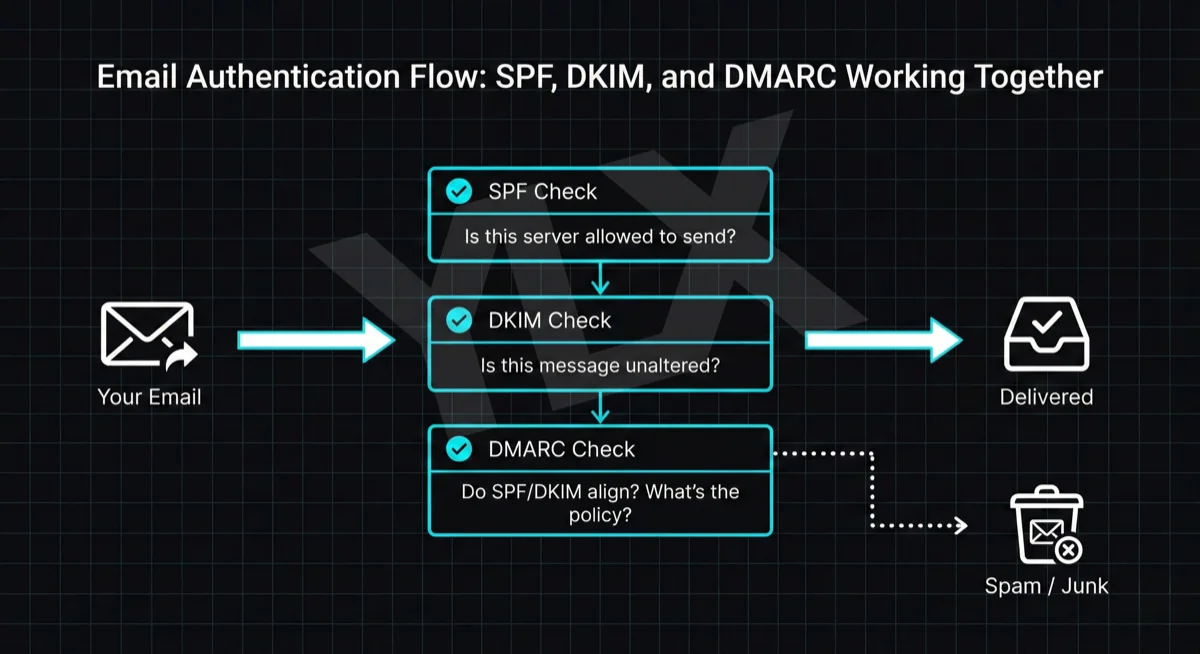
SPF, DKIM, and DMARC Explained: Email Authentication Setup
Learn what SPF, DKIM, and DMARC are, why Gmail and Microsoft now require them, and how to set them up with step-by-step DNS examples for common providers.
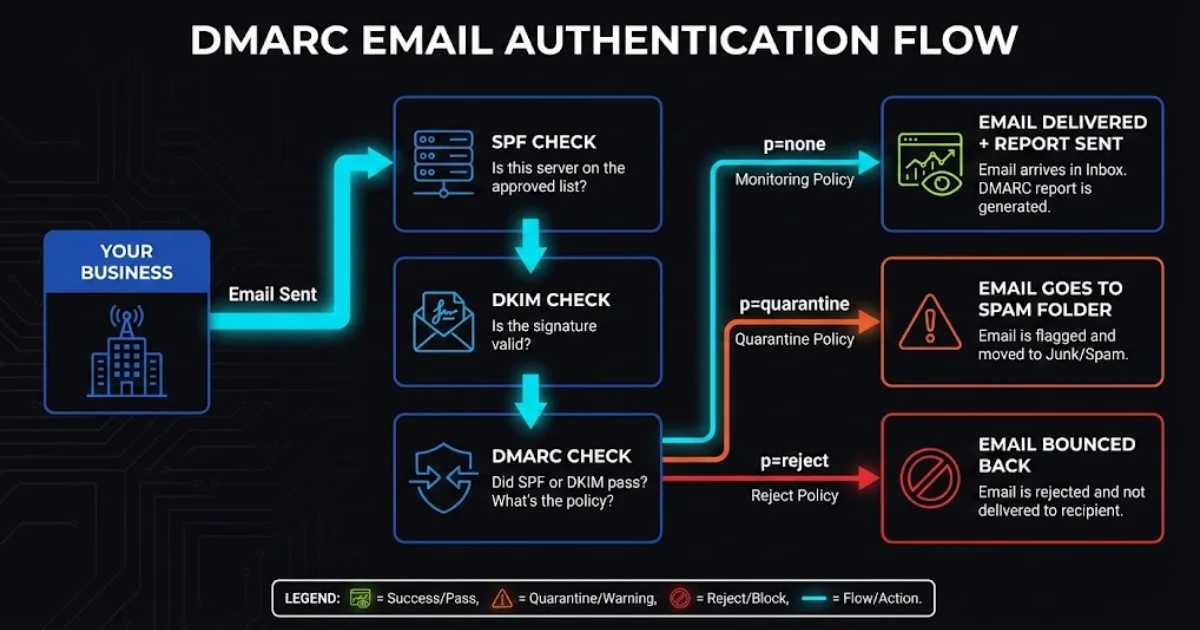
What Is DMARC and Why Your Business Emails Depend on It
DMARC protects your domain from spoofing and helps email deliverability. Learn how it works with SPF and DKIM, what providers enforce now, and what to do next.
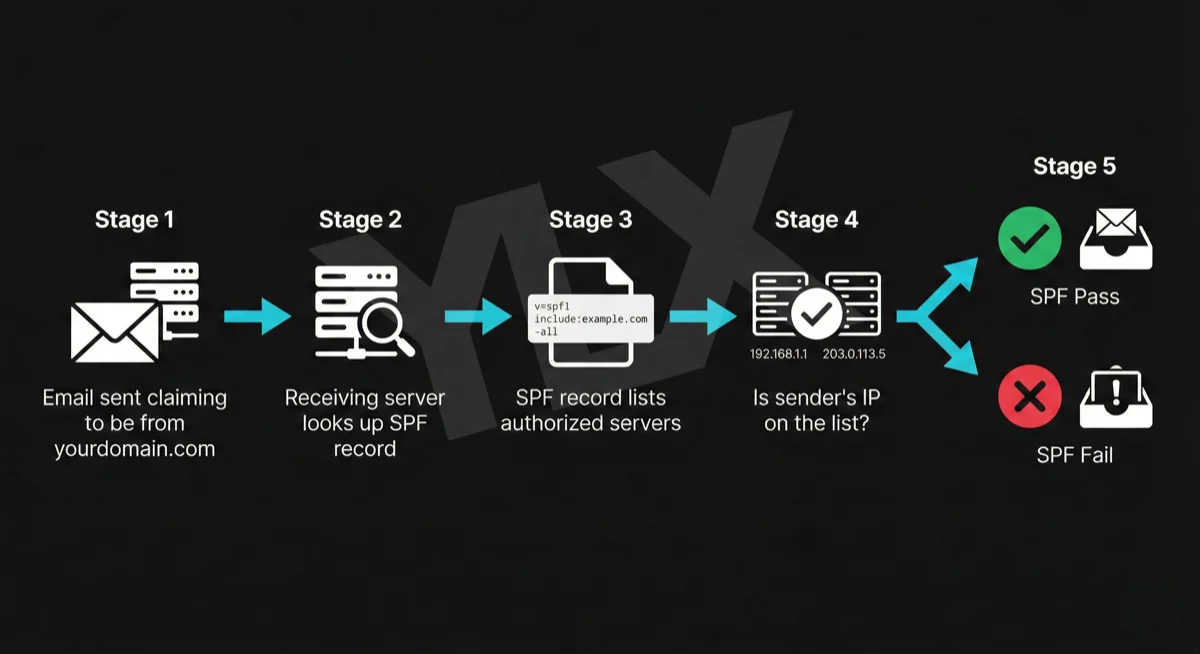
What Is SPF? The First Line of Email Authentication
SPF tells email providers which servers can send from your domain. Learn how it works, why Gmail and Microsoft require it, and how to set it up correctly.