How to Test Your Website for Accessibility (Free Tools)
94.8% of the top one million websites fail basic accessibility checks. That number comes from WebAIM's 2025 accessibility analysis (opens in a new tab), which tested one million home pages and found an average of 51 errors per page.
Your website probably has accessibility issues too. The question is whether you know about them.
Website accessibility testing tools can help you find problems before they drive customers away. Some are free, take minutes to run, and don't require any technical skills. This guide walks you through the best free tools and the manual checks that catch what automated scans miss.
Accessibility testing reality in 2025 showing 94.8 percent of home pages with detected WCAG failures, 51 average errors per page, and top issues of low contrast text at 79.1 percent, missing alt text at 55.5 percent, and missing form labels at 48.2 percent
Why Testing Matters
27% of Canadians aged 15 and older had at least one disability in Statistics Canada's 2022 survey results (opens in a new tab). That's 8 million people.
When your website doesn't work for these visitors, they leave. They don't email you to explain what went wrong. They go to a competitor whose site works.
If your Ontario business has 50 or more employees, there is a legal web-accessibility requirement under the Accessibility for Ontarians with Disabilities Act, 2005 (AODA) (opens in a new tab) and O. Reg. 191/11, section 14 (opens in a new tab). Ontario's guidance says businesses and non-profits with 50+ employees must meet WCAG 2.0 Level AA for public websites, and Ontario's compliance-reporting guidance lists a December 31, 2026 filing deadline for private and non-profit organizations with 20+ employees (opens in a new tab).
This post is educational and not legal advice. For legal interpretation, speak with qualified counsel.
Testing is how you find out where you stand.
What Automated Tools Can and Can't Do
Before you run any scans, you should know what they're good at and where they fall short.
A 2021 Deque study (updated in 2025) (opens in a new tab) analyzed over 2,000 accessibility audits across 13,000 pages and nearly 300,000 issues. It reported that automated testing identified about 57% of accessibility issues by volume.
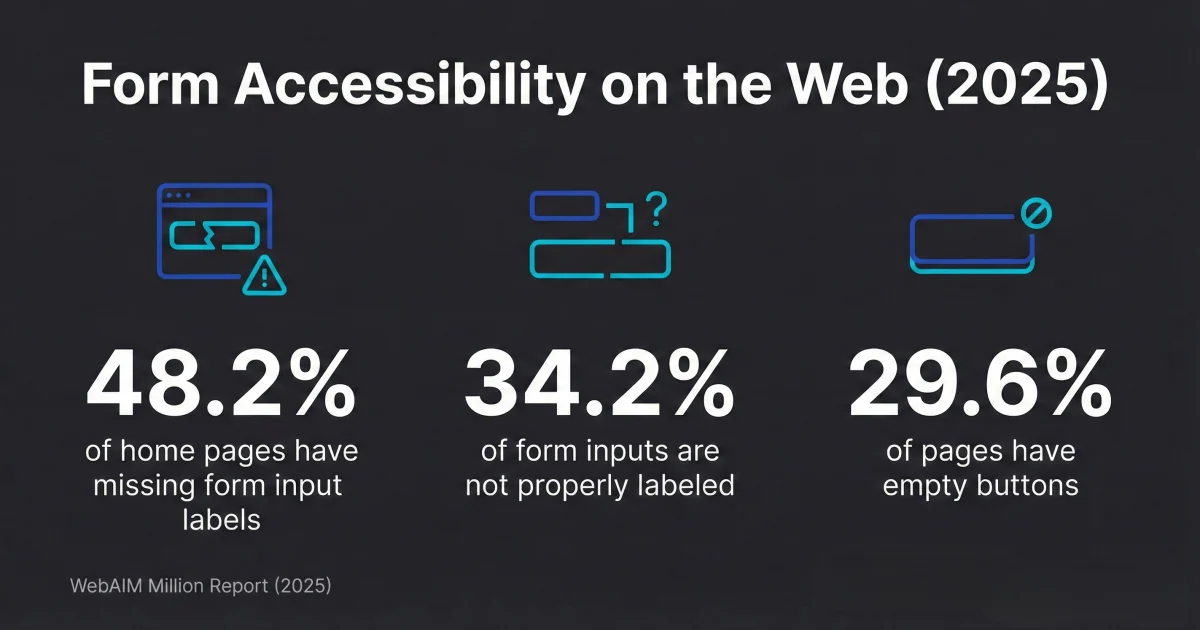
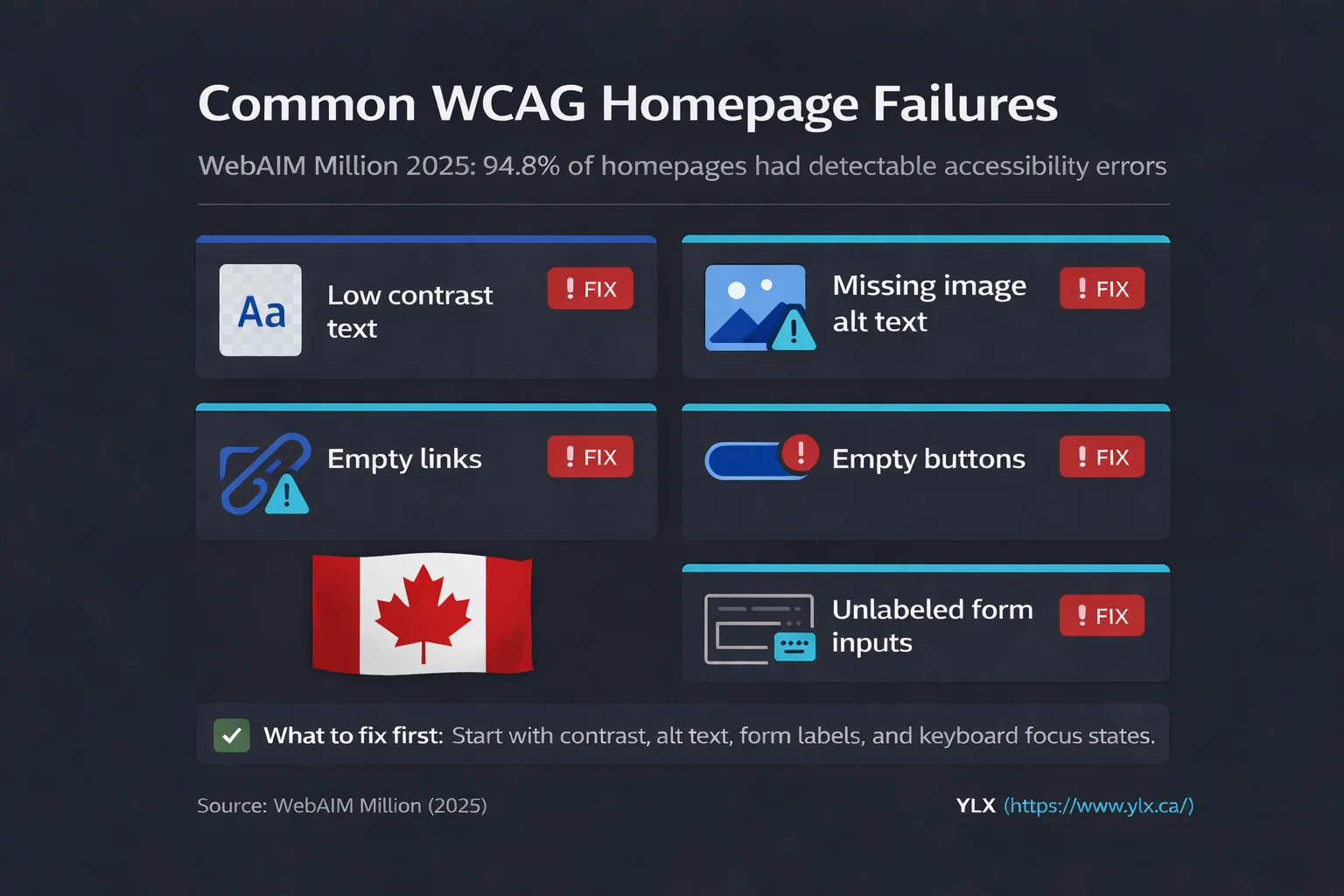
WebAIM's 2025 dataset (opens in a new tab) helps explain why automation catches so much. It found that six common error categories accounted for 96% of detected errors. In the same 2025 report, low-contrast text appeared on 79.1% of home pages, missing alternative text appeared on 55.5%, and missing form input labels appeared on 48.2%.
But they can't tell you whether your image descriptions actually make sense. They can't judge whether your navigation order is logical. They can't assess whether someone using a screen reader can complete your contact form. Those checks require a human.
Think of automated tools as a strong starting point. They catch more than half your problems, including the most common ones. The rest needs manual testing.
Three Free Tools to Run Today
You don't need 27 tools. These three catch the most issues with the least friction.
Comparison of three free accessibility testing tools showing WAVE for visual non-technical checks, Lighthouse for quick machine-detectable audits, and WebAIM Contrast Checker for WCAG AA text contrast ratios, plus what each tool misses
1. WAVE (Best for Non-Technical Users)
WAVE (opens in a new tab) is a free browser extension from WebAIM, a non-profit at Utah State University. Install it in Chrome, Firefox, or Edge, visit any page on your site, and click the WAVE icon.
It puts colored icons directly onto your page showing where issues are. Red icons are errors. Yellow are warnings. Green are features you're doing right, like proper alt text.
What makes WAVE approachable is the visual feedback. You don't need to read code or open developer tools. You see a red icon on a form field and know something is wrong with that field.
WAVE checks for missing alt text, low contrast, empty links, heading structure problems, missing form labels, and incorrect use of ARIA (Accessible Rich Internet Applications) attributes.
2. Google Lighthouse (Already in Your Browser)
You already have this one. Open Chrome, press F12 to open DevTools, click the Lighthouse tab, check "Accessibility," and click "Analyze page load."
Lighthouse gives you a score from 0 to 100. But here's the important part: a perfect 100 does not mean your site is accessible.
Developer Manuel Matuzovic proved this by building a completely inaccessible website that scored 100 on Lighthouse (opens in a new tab). Content was invisible, keyboard input was disabled, and screen readers were blocked. Lighthouse still called it perfect.
Lighthouse only tests a limited set of machine-checkable accessibility audits in Chrome's Lighthouse accessibility documentation (opens in a new tab). A full WCAG 2.0 AA audit covers far more. Use the score as a rough indicator, not a certificate of compliance.
3. WebAIM Contrast Checker
Low contrast text is the most common accessibility failure. WebAIM's 2025 analysis found it on 79.1% of home pages (opens in a new tab).
The WebAIM Contrast Checker (opens in a new tab) is simple. Paste in your text color and background color as hex codes (like #333333 and #ffffff). It tells you whether the combination passes or fails.
WCAG 2.0 Level AA requires a contrast ratio of at least 4.5:1 for normal text and 3:1 for large text (14pt bold, about 18.66px, or 18pt regular, about 24px). If your main body text fails this check, that's one of the first things to fix.
Not sure what hex codes your site uses? Right-click any text in Chrome, select "Inspect," and look at the color values in the Styles panel on the right side.
Five Manual Checks (No Tools Needed)
These take about 10 minutes and catch issues no automated tool can find.
Five-step manual accessibility testing flow showing keyboard tabbing, 200 percent zoom, form label checks, vague link text checks, and large text testing on mobile, with fix-first, fix-soon, and fix-next prioritization
1. Tab Through Your Entire Page
Put your mouse aside. Press Tab repeatedly and watch what happens.
Can you see where the focus is on each press? There should be a visible outline or highlight. Can you reach every link, button, and form field?
Can you open menus and navigate them? Can you get past the navigation to the main content?
If you get stuck and can't move forward, that's called a keyboard trap. If you can't see where the focus is, keyboard-only users can't use your site.
2. Zoom to 200%
Press Ctrl and + (Cmd and + on Mac) until your browser shows 200% zoom. Does all your content still work? Does text get cut off or overlap? Do buttons or navigation break?
WCAG requires content to work at 200% zoom. Many people with low vision and most mobile users rely on text scaling.
3. Click Your Form Labels
Go to any form on your site, like your contact page. Click on the text label next to a field (the word "Email" next to an email input, for example). Does your cursor jump into the field?
If clicking the label doesn't activate the field, the label isn't properly connected to the input. Screen readers won't be able to tell users what that field is for. WebAIM's 2025 analysis found missing form input labels on 48.2% of home pages (opens in a new tab). Our accessible forms guide explains how labels, error messages, and keyboard navigation should work together.
4. Search for Vague Link Text
Open your page source (Ctrl+U or Cmd+U) and search for "click here," "read more," "learn more," and "continue."
Screen reader users often pull up a list of all links on a page to navigate. If six links say "read more," they have no idea where each one goes. Every link should describe its destination.
5. Try Your Phone with Larger Text
Go to your phone's accessibility settings and increase the default text size to the largest option. Then load your website.
Does everything still work? Do buttons become too small to tap? Does text overflow or get hidden behind other elements?
Most people over 40 increase their phone's text size at least somewhat. If your site breaks when they do, you're losing customers.
How to Read Your Results
After running WAVE or Lighthouse, you'll have a list of issues. Here's how to prioritize.
Fix first (these block access entirely):
- Missing form labels. People can't fill out your contact form.
- Keyboard traps. People can't navigate past a certain point.
- Missing alt text on linked images. People don't know where a link goes.
- Empty buttons. People can't tell what the button does.
Fix soon (these degrade the experience):
- Low contrast text. People strain to read your content.
- Heading order problems, like skipping from H1 to H4. Screen readers use headings to navigate like a table of contents.
- Missing page language attribute. Screen readers may pronounce your content in the wrong language.
Fix when you can (these are improvements):
- Redundant alt text like "image of..." (screen readers already announce that something is an image).
- Missing skip-to-content links for keyboard users.
- Non-descriptive link text.
Focus on the red errors in WAVE and failing audits in Lighthouse first. Warnings matter, but errors come first.
Why Accessibility Overlays Don't Work
You may have been pitched an accessibility widget. A company promises one line of code will handle everything.
It won't.
In January 2025, the U.S. Federal Trade Commission announced action against accessiBe over deceptive AI accessibility claims, including an order requiring the company to pay $1 million (opens in a new tab).
In its 2024 year-end ADA litigation report, UsableNet said more than 4,000 digital accessibility lawsuits were filed (opens in a new tab). Quick-fix overlays did not remove legal risk, because lawsuits still focused on underlying accessibility barriers in real user flows.
Overlays modify what visitors see without changing your underlying code. They can't fix missing alt text in your content management system, repair broken heading structures, make your forms accessible, or remove keyboard traps. We covered overlays in more detail in our AODA compliance guide.
When to Call a Professional
The free tools and manual checks above catch a lot. But if any of these apply to you, it's worth getting a professional audit:
- Your organization has 50 or more employees and must comply with AODA
- You handle transactions online (ecommerce, bookings, payments)
- You've received an accessibility complaint
- Your automated scans show dozens of errors and you're not sure where to start
- You need documentation for compliance reporting
A professional accessibility audit typically includes automated scanning, manual testing with keyboard and screen reader, and a report explaining what to fix and how to fix it. Scope and cost vary based on site size, templates, integrations, and whether ecommerce or custom web apps are included.
Ask potential auditors whether they test with real assistive technology (screen readers, keyboard-only navigation) and whether they provide prioritized recommendations, not just a list of WCAG failures.
What We Build
Every website we build at YLX starts with semantic HTML, proper heading structure, labeled form fields, and descriptive alt text on every image. We test with both automated tools and manual keyboard navigation because automated scans alone miss too much.
Our WCAG guide explains the accessibility standards in plain language. Our AODA post covers who's legally required to comply in Ontario. This post fills in the piece both of those were missing: how to actually check your site.
The Bottom Line
You don't need to be a developer to test your website for accessibility. Run WAVE and Lighthouse, check your contrast ratios, and spend 10 minutes on the manual checks above. That combination catches the majority of common problems.
If your scans come back clean and your manual checks pass, you're ahead of most websites. WebAIM's 2025 analysis found detected WCAG failures on 94.8% of home pages (opens in a new tab). If your checks fail, you know exactly what to fix first.
Need Help With Accessibility?
If you're not sure whether your website meets accessibility standards, we can take a look. We'll run the same checks described in this guide plus screen reader testing and a full manual review, and explain what we find in plain terms.
Get a free accessibility review: Contact us at info@ylx.ca
Analysis FAQ.
Can automated tools make my website fully accessible?
No. Automated tools catch many common issues, but they cannot evaluate everything required for an accessible user experience. They can detect problems like low contrast and missing labels, but they cannot judge whether your content is clear, your navigation flow is logical, or your forms are usable with a screen reader. Use automation as a starting point and always include manual testing.
What is the best free accessibility testing tool?
WAVE is the most approachable option for non-technical users because it shows issues visually on your page. For a broader view, pair it with Lighthouse and manual checks like keyboard navigation, zoom, and form-label testing. No single free tool can confirm full compliance by itself.
How often should I test for accessibility?
Test after every major site update, such as new pages, redesigns, or plugin changes, and at least quarterly. Accessibility is not a one-time fix. New content and design changes can introduce new issues even on a previously compliant site.
Does my Ontario business need an accessible website?
Under AODA, accessibility requirements depend on your organization type and size. As of February 11, 2026, Ontario guidance says businesses and non-profits with 50 or more employees must meet WCAG 2.0 Level AA for public websites, and organizations with 20 or more employees have compliance reporting obligations. Reporting cycles and deadlines can change, so verify current requirements at https://www.ontario.ca/page/completing-your-accessibility-compliance-report.
Tagged with

Further Reading
Related Analysis.
Accessible Contact Forms: Build Pages That Work for Everyone
Nearly half of top websites have unlabeled form fields. Learn how to build accessible web forms with proper labels, error handling, and keyboard support.
AODA Website Accessibility Rules for Ontario Businesses
Ontario's AODA sets accessibility rules by organization size. Learn who needs WCAG 2.0 AA websites, who files reports, and the key 2026 filing deadlines.
What Is WCAG? Web Accessibility Explained for Business
WCAG defines how to build websites everyone can use. Millions of people need accessible design to use the web. Here is what that means for your business.